
Ever stumbled upon a website that seems sluggish or full of flashy animations? The culprit might be JavaScript, a programming language that makes websites interactive but can sometimes slow things down. If you’re looking to streamline your browsing experience or troubleshoot website issues, Chrome allows you to disable JavaScript. Here’s a step-by-step guide to disable JavaScript in two ways:
Method 1: Disabling Javascript of All Websites
- Open Chrome Menu: Look for the three vertical dots in the top right corner of your Chrome window. Click on it, and a menu will appear.
- Open Settings: In the menu, find the option labeled “Settings” and click on it. This will open a new tab with Chrome’s settings.
- Search for the JavaScript: There’s a search bar at the top of the settings page. Type in “JavaScript” to quickly find the relevant section.
- Website Permissions: Click on “Site Settings” from the search results. This will bring you to a page with various website permission controls.
- Content Control Center: Look for the section labeled “Content” and click on it. Here, you’ll find controls for different types of content websites can use.
- Taming the JavaScript Beast: Find the option labeled “JavaScript” and click on it. You’ll see a toggle switch. Click on it to turn it off. Now, JavaScript will be disabled for all websites you visit in Chrome.
Method 2: Disabling JavaScript for a Specific Website
- Head to the Target Website: Navigate to the website where you want to disable JavaScript.
- Right-click to Explore: Once you’re on the website, right-click anywhere on the page. This will bring up a context menu.
- Inspect Element: Unveiling the Code: In the context menu, select the option “Inspect”. This opens a powerful tool called Developer Tools, which allows you to peek behind the curtain of the website’s code.
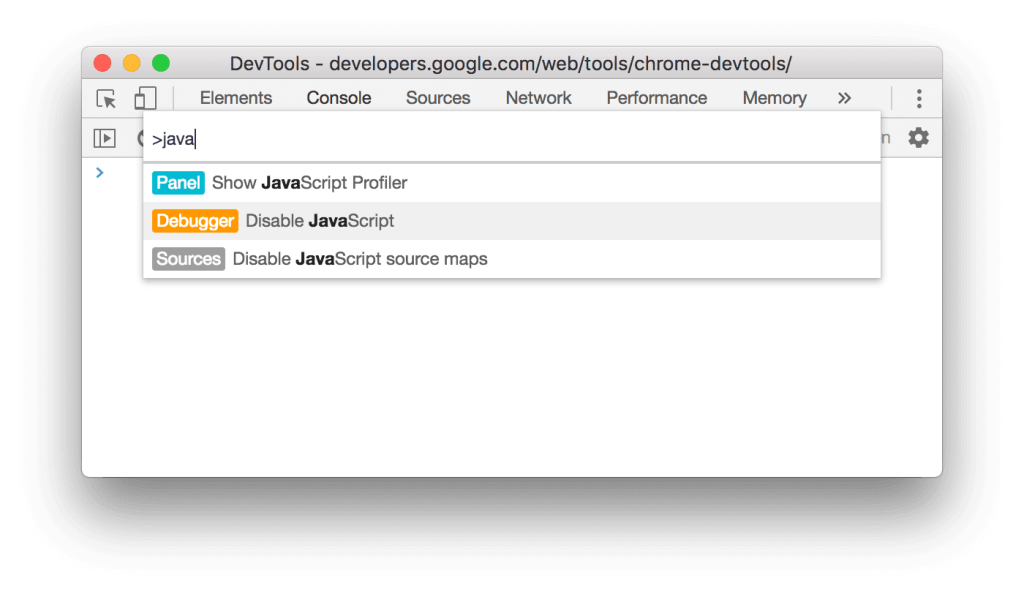
- Command Menu: There are different ways to access the Command Menu in Developer Tools. On Windows and Linux, press Ctrl+Shift+P together. For Mac users, it’s Command+Shift+P.
- Disabling the JavaScript: In the Command Menu that appears, start typing “disable JavaScript.” You’ll see a suggestion appear. Click on “Disable JavaScript” or press Enter to execute the command.
Remember: Disabling JavaScript for all websites can make some web pages malfunction. It’s best to use this method only for specific websites where you’re facing issues. For general browsing, it’s recommended to keep JavaScript enabled to enjoy the full functionality of modern websites.
By following these simple steps, you can disable of JavaScript and customize your browsing experience in Chrome!