How to format and Reinstall Windows 7

Windows 7 is far better than previous windows versions (XP and Vista). The install process is plain simple and easy to follow. Big Bravo! for Microsoft for this. Now, just follow these steps and you will install windows 7 in no time
You can Install Windows 7 via DVD Disk you’ve purchased or with bootable USB.
This post explains installing windows 7 with dvd disk.
– 31 steps total, every step is screen-captured
First, insert your Windows 7 Boot Disk into your dvd drive and reboot your PC
While the PC is rebooting, you will be prompted ” Press any key to boot from CD…” Just press any key here

After you press a key, windows will load installation files.

Windows 7 setup will start

Select your language, time and currency format and keyboard input (US)

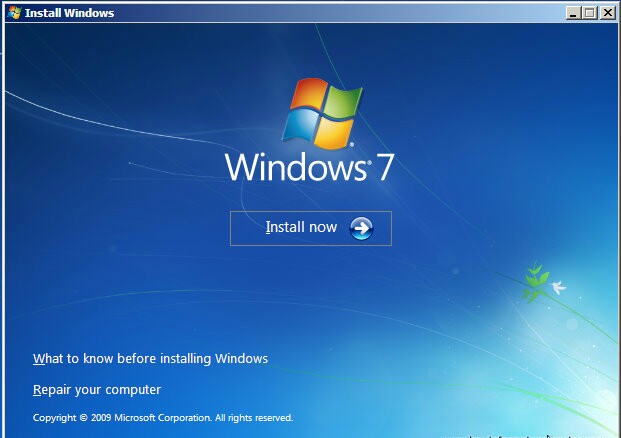
Click Install Now to proceed

Setup will load for a min or two Install Windows 7 – Setup is starting

If you do, select I accept the license terms and click Next

If you are upgrading from Windows Vista select Upgrade, if you had Windows XP you have to select Custom (Advanced). Upgrade from Windows XP to Windows 7 is not available. Click Custom (Advanced)

Select the Partition where you want to install Windows 7 and click Next. You will need at least 5716mb free space.

If you don’t have enough free space to Install Windows 7, you will receive the following warning

If that’s the case, you will need to format the partition where you previously had Operating System installed. WARNING: Formatting a partition will erase all existing data on the partition, proceed only if you have backed up all your files!
If you want to format the partition, go to Drive options

and format the partition where you want to install windows 7. Again, do this only if you have backed up your documents/files!
click format and then yes

After you press Next, Windows 7 Installation will begin. Approximately takes about 30 min to 1 hour to finish, depending on your computer speed.

After half an hour, setup is complete and windows 7 installation is almost finished. Few more minutes

Now your computer will reboot, since the Windows 7 DVD boot disk is still in the drive, the message press any key to boot from DVD will appear. We already did that, so this time DO NOT press anything. Just wait 5 sec and your PC will continue booting and finish installing your operating system.


Windows will continue booting and installing, almost there!


Finally!
Insert your name (this will be your windows username)

If you want to, insert password for your computer. ( Hey….you won’t forget it, right? 🙂 )

Insert your Windows 7 product key and press Next

Do you want Microsoft Updates for your new operating system? It is highly recommend you know…! Select use recommended settings

It’s time for Time zone, select yours from the drop down menu

Depending on your location, select the appropriate network location.

If you have more than 1 computer, type homegroup password for sharing files. Make sure to remember it

Windows is finalizing your settings

Can you see the finish line ? Yup, we’re there

That’s it. Now insert your computer manufacturer drivers CD and install drivers. Also FYI, Windows 7 has great driver support, go to Start –> Control Panel –> Select View By = Small Icons –> Click Windows Update

Check for updates and click on optional updates, to see which drivers windows 7 found for your computer automatically.
Tutorial: How to Install Windows 7
Done!