
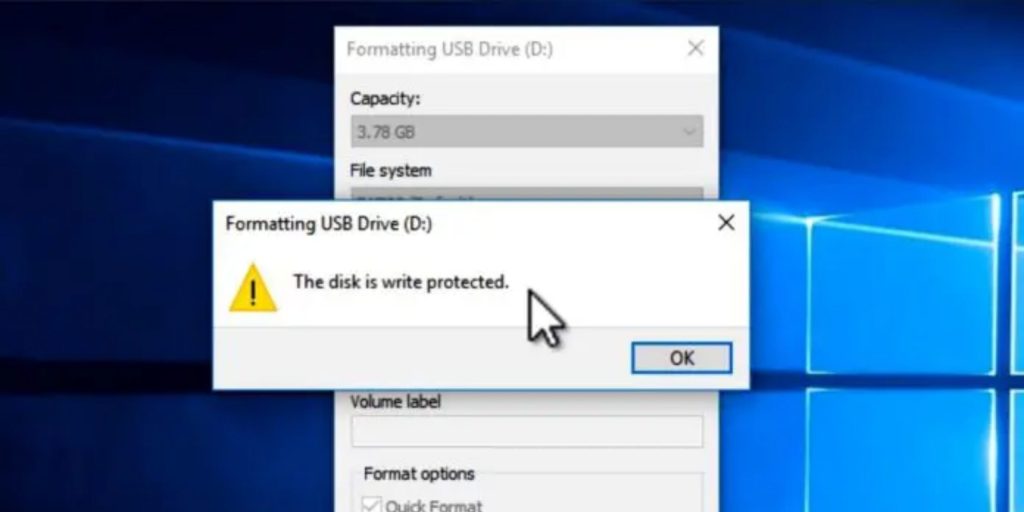
Pen drives, also known as USB drives, are a convenient way to store and transfer data. However, at times, users may encounter write permission errors when trying to save files to their pen drive. This can be frustrating, but the good news is that it is often easy to fix. In this blog post, we will discuss some common solutions to pen drive write permission errors.
What Is a Pen Drive
A pen drive, also known as a USB drive or flash drive, is a small, portable storage device that can be used to store and transfer data. It typically has a USB connector on one end, which allows it to be plugged into a computer or other device to access the stored data. Pen drives are commonly used to transfer files between computers, back up data, and store music, videos, and other media. They are small, lightweight and easy to carry around, and are an ideal alternative to external hard drives, which are larger and require an external power source. Pen drives can be easily found in the market with different storage capacities.
1. Check the File System
One of the most common causes of write permission errors is an unsupported file system. Most pen drives come formatted with the FAT32 file system, which is compatible with most devices. However, if your pen drive is formatted with a different file system, such as NTFS, it may not be recognized by certain devices. To check the file system of your pen drive, right-click on the drive in Windows and select Properties. The file system will be listed under the General tab. If your pen drive is formatted with an unsupported file system, you can reformat it using the FAT32 file system to resolve the issue.
2. Check the Write-Protect Switch
Another common cause of write permission errors is a write-protect switch. Many pen drives have a switch on the side that can be used to prevent accidental data loss. If the switch is in the write-protect position, you will not be able to save files to the pen drive. Make sure that the switch is in the correct position and try saving files to the pen drive again.
3. Check Permissions
In some cases, write permission errors may be caused by incorrect permissions. If you are trying to save files to a pen drive that is connected to a different computer, the permissions on the drive may be set to read-only. To check the permissions on the pen drive, right-click on the drive in Windows and select Properties. Under the Security tab, you can view and change the permissions for the drive. Make sure that you have the necessary permissions to write to the drive.
4. Run Disk Check
If the above methods do not work, you may have a problem with the pen drive\’s file system. Running a disk check can help fix any errors on the drive. To run a disk check on your pen drive, connect it to your computer and open the Command Prompt. Type \”chkdsk /f [drive letter]:\” and press Enter. Replace [drive letter] with the letter of your pen drive. This will start the disk check and fix any errors on the drive.
Pen drive write permission errors can be frustrating, but they are often easy to fix. By checking the file system, the write-protect switch, and the permissions, you can quickly resolve the issue. If these methods do not work, running a disk check can help fix any errors on the drive. Keep these tips in mind the next time you encounter a pen drive write permission error and you\’ll be able to resolve it quickly and easily.\”
In conclusion, we hope you found this blog post informative and helpful. We would love to hear your thoughts and feedback in the comments section below. If you enjoyed this post, please don\’t forget to like our social media pages and to subscribe to our newsletter for more updates and content like this. Your support means a lot to us and helps us continue to create valuable content for you. Thank you for reading!