
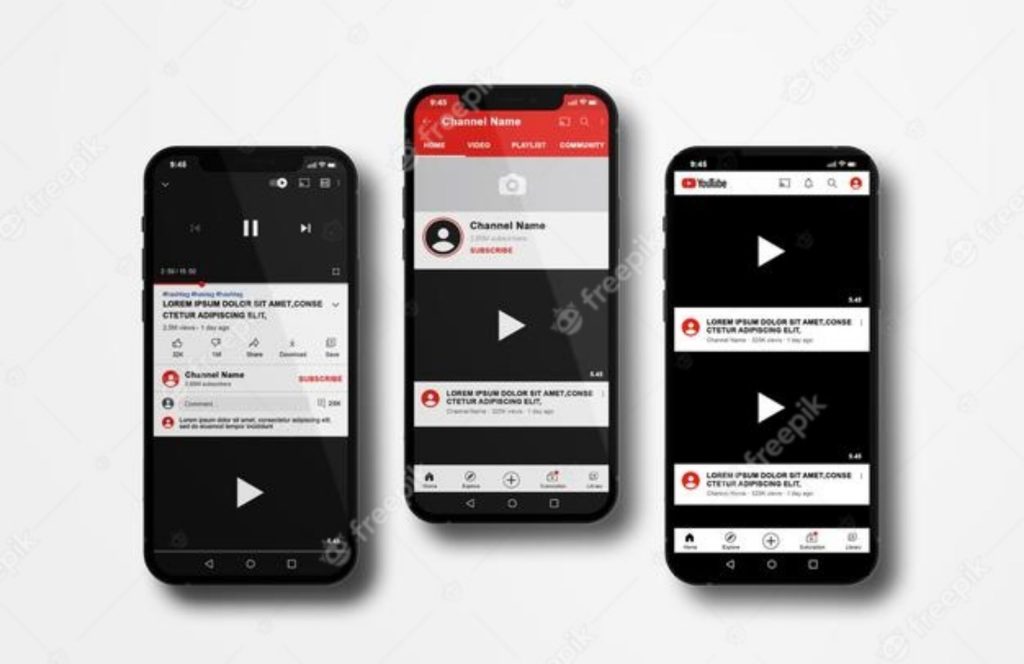
You can choose to temporarily hide content on your channel or permanently delete your channel.
Note that hiding or deleting a YouTube channel will permanently delete all Community posts, comments, and replies.
How To Hide your channel temporarily
You can hide content from your YouTube channel and choose to re-enable it later. Hiding your channel will make channel name, videos, likes, subscriptions, and subscribers private.
All your comments and replies will be permanently deleted. Your account data on other Google properties will not be removed.
Hide your channel or your channel\\\’s content:
- Sign in to YouTube Studio.
- From the left sidebar, select Settings
.
- Select Channel
Advanced Settings.
- At the bottom, select Remove YouTube Content. Note: This link will take you to a page where you can delete or hide your channel. You may be asked to enter your sign-in details.
- Select I want to hide my content.
- Select the boxes to confirm what will be hidden on your channel.
- Select Hide my channel.
If you want to make your content viewable to others, or if you want to upload, comment, or use playlists, you can re-enable the channel.
How To Delete your channel permanently
Closing your YouTube channel will permanently delete your content, including videos, comments, messages, playlists, and history. Note that you can’t currently delete a channel on mobile devices.
- Sign in to YouTube Studio.
- From the left sidebar, select Settings
- Select Channel
- At the bottom, select Remove YouTube Content. If you\\\’re asked to, enter your sign-in details.
- Select I want to permanently delete my content.
- Select the boxes to confirm you want to delete your channel.
- Select Delete my content.
It may take some time for your channel to be permanently deleted. In the short term, you may continue to see thumbnails of your videos on the site.
Note: These steps will only delete your YouTube channel, not your Google Account you use to sign in with. Learn how to delete your entire Google Account.
After you delete a channel, the channel URL and channel name will no longer be visible or searchable in YouTube Analytics. Data associated with the channel, such as watch time, will still be part of aggregate reports, but will not be attributed to the deleted channel.
If you liked this article, then please Subscribe to our YouTube Channel for Video Tutorials. You can also find and follow us on Twitter and Facebook. Join our Facebook Group Community
Please don\\\’t forget Like, Comments and Share this Post

Pingback: How To Re-enable Hidden YouTube channel – ISABIHOWTO
I was excited to uncover this page. I wanted to thank you for your time for this particularly fantastic read!! I definitely loved every little bit of it and I have you saved as a favorite to look at new stuff on your blog.} {visit the following web site|visit the following site|visit the following web site|Visit Homepage|visit the following web site|visit my webpage|visit the following internet site|visit the following webpage|visit the following site|visit the following internet site
I was pretty pleased to discover this great site. I need to to thank you for your time for this particularly fantastic read!! I definitely appreciated every part of it and I have you book marked to see new stuff on your blog.
Id like to thank you for the efforts youve put in penning this site. I am hoping to check out the same high-grade content from you in the future as well. In fact, your creative writing abilities has encouraged me to get my own site now 😉