Make sure you carefully follow the given below steps:
Part 1:
For iPhone 7/7 Plus
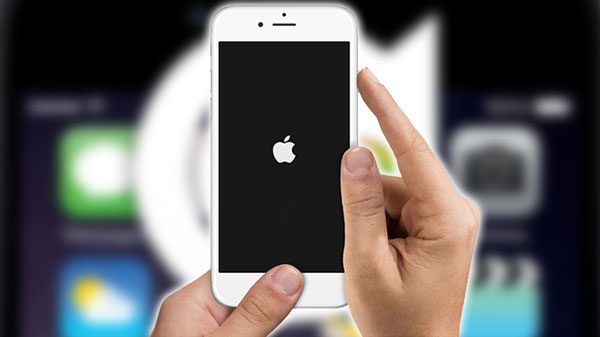
1. Firstly, press and hold both the Sleep/Wake and
Volume Down buttons for at least 10 seconds, until you see the Apple logo.
2. You can release both buttons after the Apple logo appears.
3. Wait for a few seconds until your iPhone boots up and you will see the home screen.

Part 2:
For other iDevices
1. Press and hold down the Sleep/Wake and Home buttons simultaneously until the Apple
logo appears.
//pagead2.googlesyndication.com/pagead/js/adsbygoogle.js
(adsbygoogle = window.adsbygoogle || []).push({
google_ad_client: \\\”ca-pub-3268550272987648\\\”,
enable_page_level_ads: true
});
2. Once you see the logo, let go of the buttons.
3. Once your iPhone reboots itself, you\\\’re done with this process.

Part 3
This method is also a quick one and does not need to be near a computer until when syncing your data with your computer, hence no need to use iTunes. Now, let\\\’s check the steps below to factory reset iPhone:
1. Directly go to \\\”Settings\\\” > General > Reset.
2. Select \\\”Erase All Content and Settings\\\” option.
3. Enter your password and tap on \\\”Erase iPhone\\\”.

Note – Before resetting your iPhone make sure that you back up your iPhone, and save it on your computer because this process will delete all saved files and data on your iPhone.
Please don\\\’t forget to like, share and comment