How To Manual Install WordPress CMS Using Cpanel File Manager
WordPress is among the most popular CMSs (Content Management System). You only need to consider that 39% of websites employ it.
Because of this, we have chosen to detail each method of installing WordPress step-by-step in our tutorial, How to install WordPress: the comprehensive guide.
Let\’s look at what you should know before starting the installation and several installation methods. We\’ll start with a manual installation before looking at a rapid, one-click installation of WordPress.
But let\’s begin with a succinct introduction first.
How To Install WordPress manually
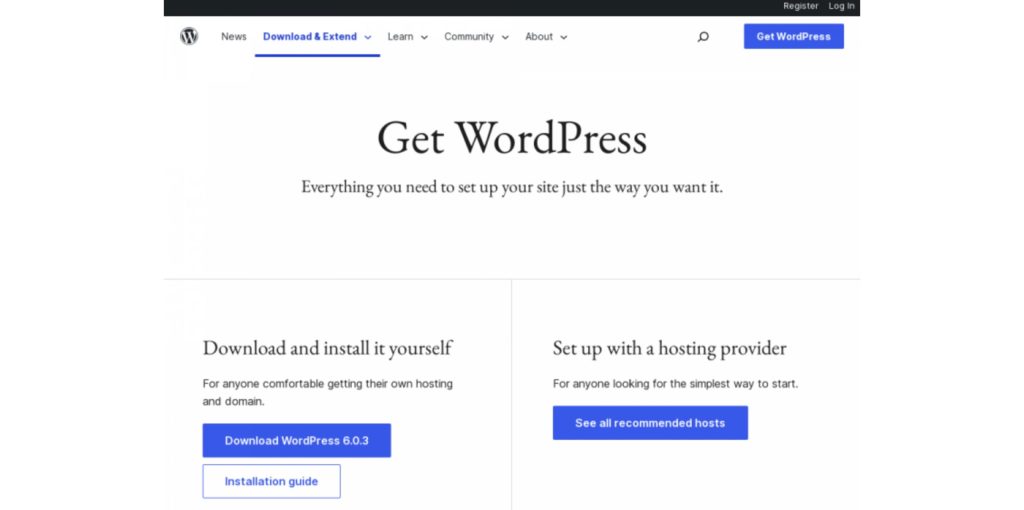
Firstly, you‘ll need to download WordPress from the official site.
To install WordPress manually, we can directly use the cPanel file manager that allows us to upload files to the server.
To access the file manager just click on File Manager, as shown in this screenshot:

The folder where we will need to upload our files is public_html as seen in this screenshot:

With the file manager, we can also upload the compressed file directly and then extract it from the file manager. To do this we simply click on Upload and then choose the file to upload and wait for the upload to complete.
At the end click on Back to …
Then select the file you just uploaded by simply clicking on it and then click on Extract. It will open a window that allows us to choose where to extract the files, we select /public_html
By doing so, the files extracted from our compressed file will be placed in a subfolder of the public_html called wordpress.
What we need to do is move them to the main folder.
To do this just open the wordpress folder, click on Select All and then Move.

We will then be asked for the destination path of the files to which we should always enter /public_html and confirm by clicking on Move File(s) as seen above.
Create Database.
From cPanel to create your database just click on MySQL Database Wizard.

All you have to do is follow the various steps that will allow you to choose the name of your database, and create a user.
After choosing a username and password, you will need to grant permissions to the user you just created. For installation it is better to directly select All privileges as you see in this screenshot:

If you have any doubts you can follow the step by step procedure in our tutorial on how to create a MySQL database.
Start WordPress installation
At this point when you connect to your site from your browser, you will find the setup procedure.

If you uploaded the WordPress files in a folder inside /public_html you don’t have to link on the home page of your site but to the correct address. For example, if you uploaded the files in a folder called myblog you will need to link to https://yourwebsite.com/myblog/
As you see in the screenshot above to proceed you will need to have some data, namely those related to the database that we have seen before on how to create.
This information will be necessary to create the wp-config.php file.
To begin the configuration of WordPress we must first click on Start!
In the new window, you will have to enter the data that will allow the connection to the database. Therefore, the name of the database that you entered earlier in the creation phase of the MySQL database is required along with the name and password of the user we created earlier.

Remember that the name of the database will be formed by the user name you use to access cPanel and the name chosen for the database separated by an underscore in this format: username_nomedatabase
After entering them, a new window like the one you see below will open and you can start the installation by clicking on Run the installation.

In the new window, you must enter the basic information to start configuring WordPress, all the information you enter can also be changed later.

In addition to entering the title of the site, you’ll need to create a user with a password. You’ll also need to enter a valid email, so check that you’ve written it correctly before proceeding.
From here you can also choose whether to allow search engines to index your site or not, through the option Search Engine Visibility.
When you have completed the procedure click on Install WordPress to proceed.
At this point, you’ll be faced with a screen that tells you that WordPress has been successfully installed.

Here you will also have a summary of the username you chose and you can click on Login to access the WordPress login page. After completing the installation you will also receive a summary email with the same data.
Were you able to complete the installation or are there any steps that you do not understand? Let me know in the comments below.